Delta Dental State Portals- AK, AR, CO, CT, IL, KS, MA, NJ, OK, OR, RI, SD, VA, WA, Northeast, Delta Covers Me

This article will help you create new Delta Dental state portal credentials to be used within Eligibility AI so that you can receive more accurate eligibility data from the state specific portals.
- Go to the respective Delta Dental state portal website and locate the provider login/registration section. Select the Universal Delta Sign In (when applicable) and click Create an account. Sometimes the state specific portal will automatically redirect you to Delta Dental for the log in, so you may not need to select the Universal Delta Sign In. In this scenario, just click Create an Account on the redirected page and follow the rest of the steps.
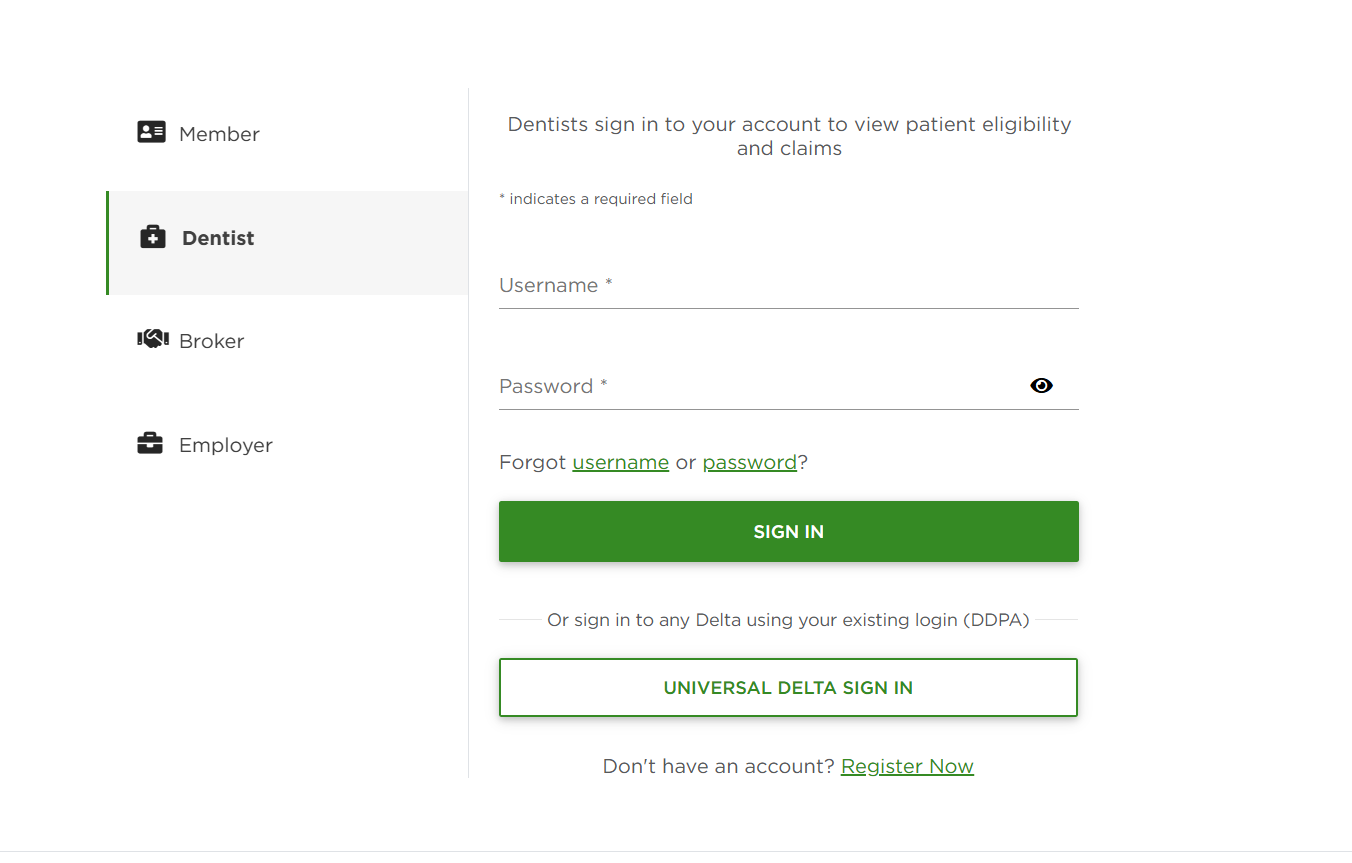
- Alaska: https://www.deltadentalak.com/provider
- Arkansas: https://my.deltadentalar.com/sign-in
- Colorado: https://www.deltadentalco.com/dentists.html#
- Connecticut: https://www.deltadentalct.com/sign-in
- Illinois: https://www.deltadentalil.com/sign-in/
- Kansas: https://deltadentalks.com/dentist
- Massachusetts: https://www.deltadentalma.com/provider
- New Jersey: https://www.deltadentalnj.com/sign-in
- Oklahoma: https://www.deltadentalok.org/for-dentists
- Oregon: https://www.deltadentalor.com/provider
- Rhode Island: https://deltadentalri.com/Home/Login
- South Dakota: https://southdakota.deltadental.com/dentist/
- Virginia: https://deltadentalva.com/dentists.html
- Washington: https://www.deltadentalwa.com/provider
- Northeast: https://www.nedelta.com/providers/
- Delta Covers Me: https://my.deltadentalcoversme.com/provider
- This should redirect you to deltadental.com for registration
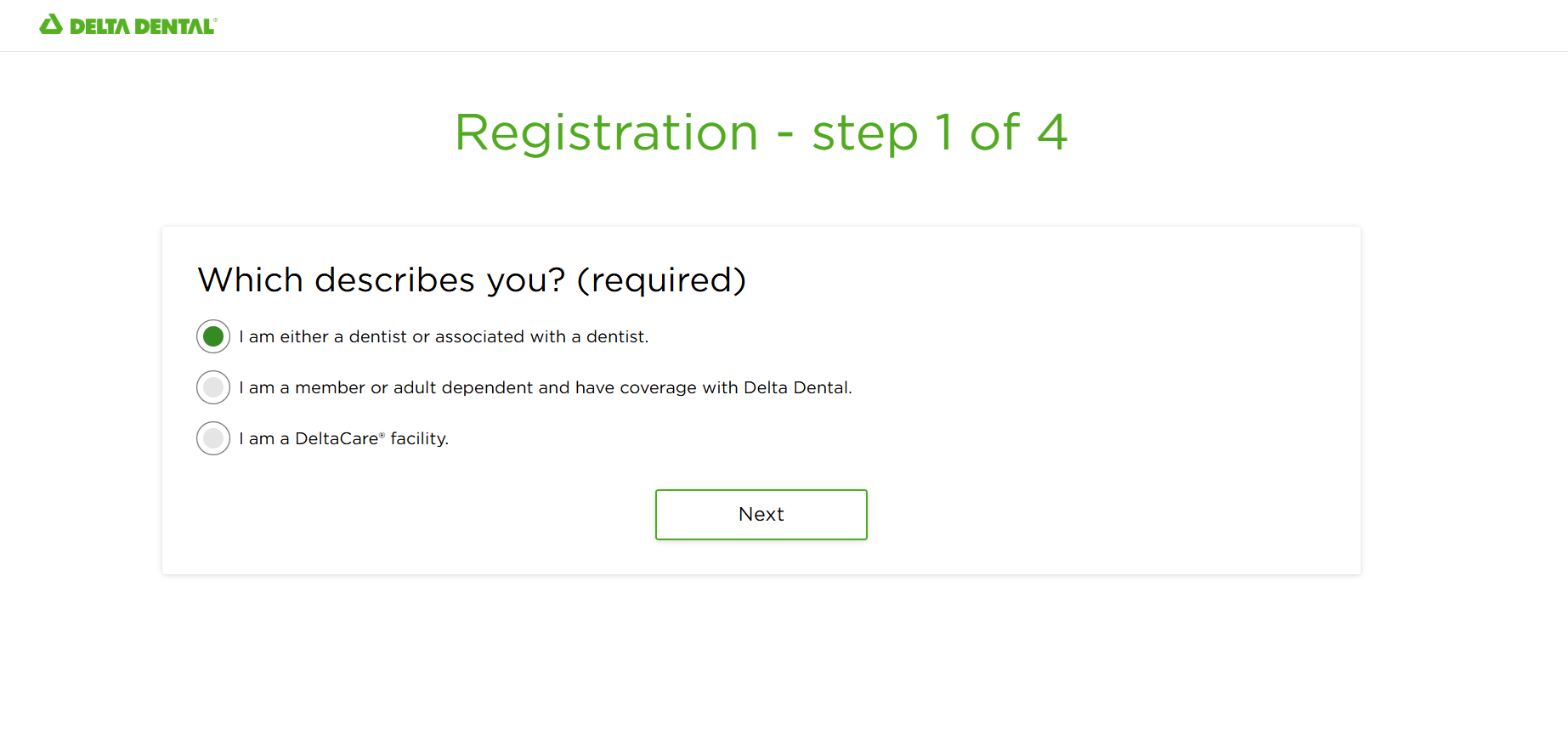
- Select the first option for 'I am either a dentist or associated with a dentist.' then click Next
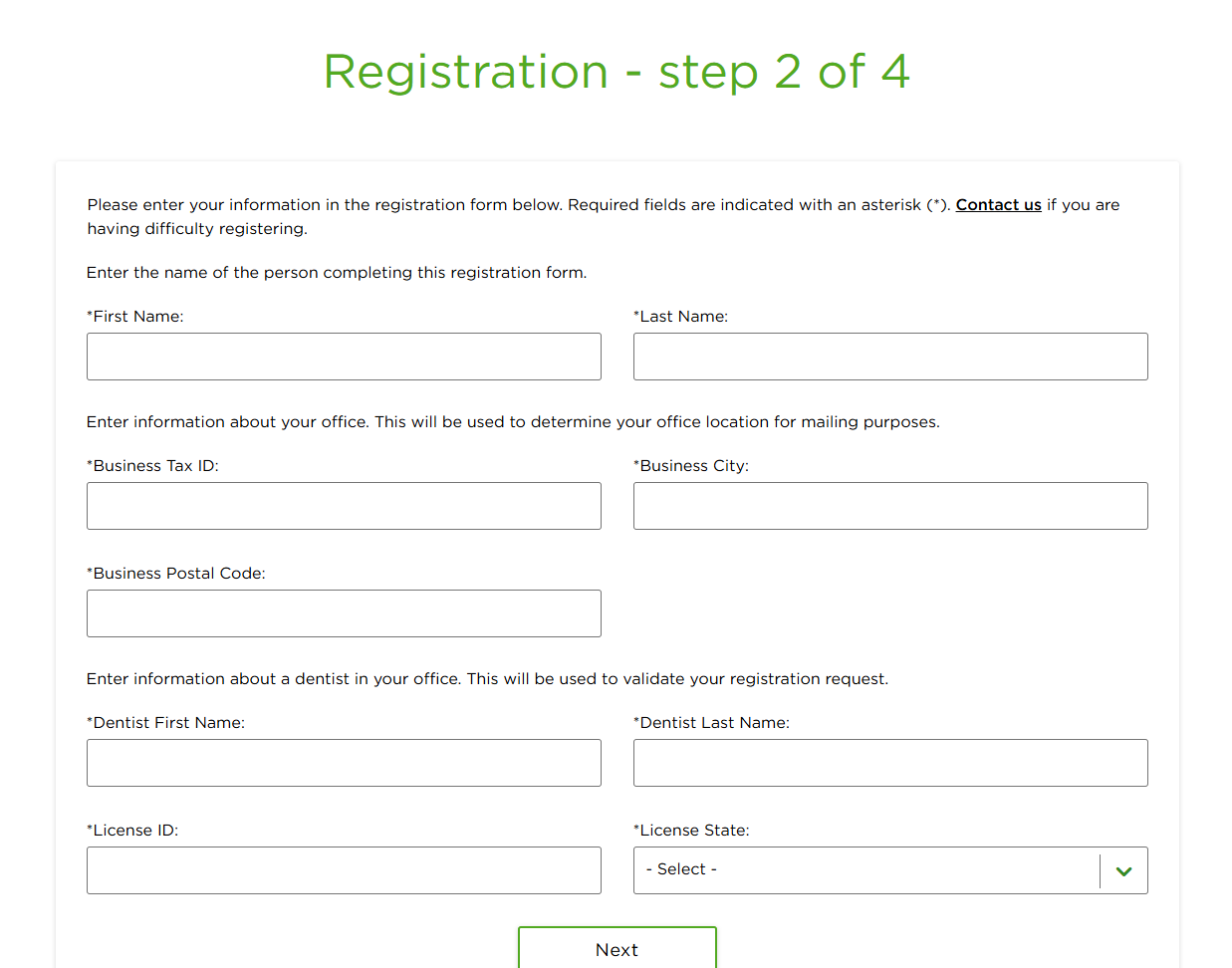
- Fill out the following information as shown on the screen and click Next
- This next step will automatically validate the provider information you input from the previous step. Scroll down and continue filling out the information shown on the screen.
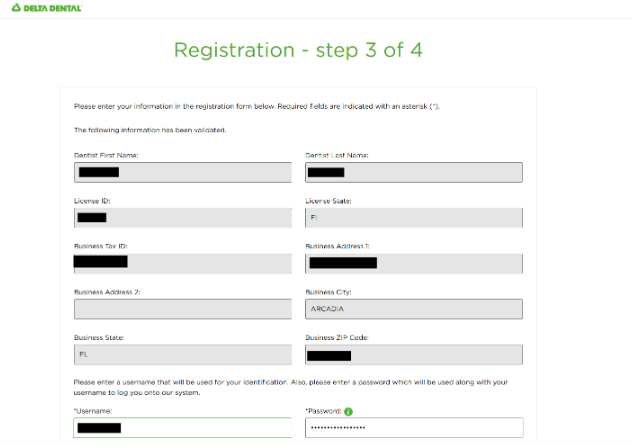
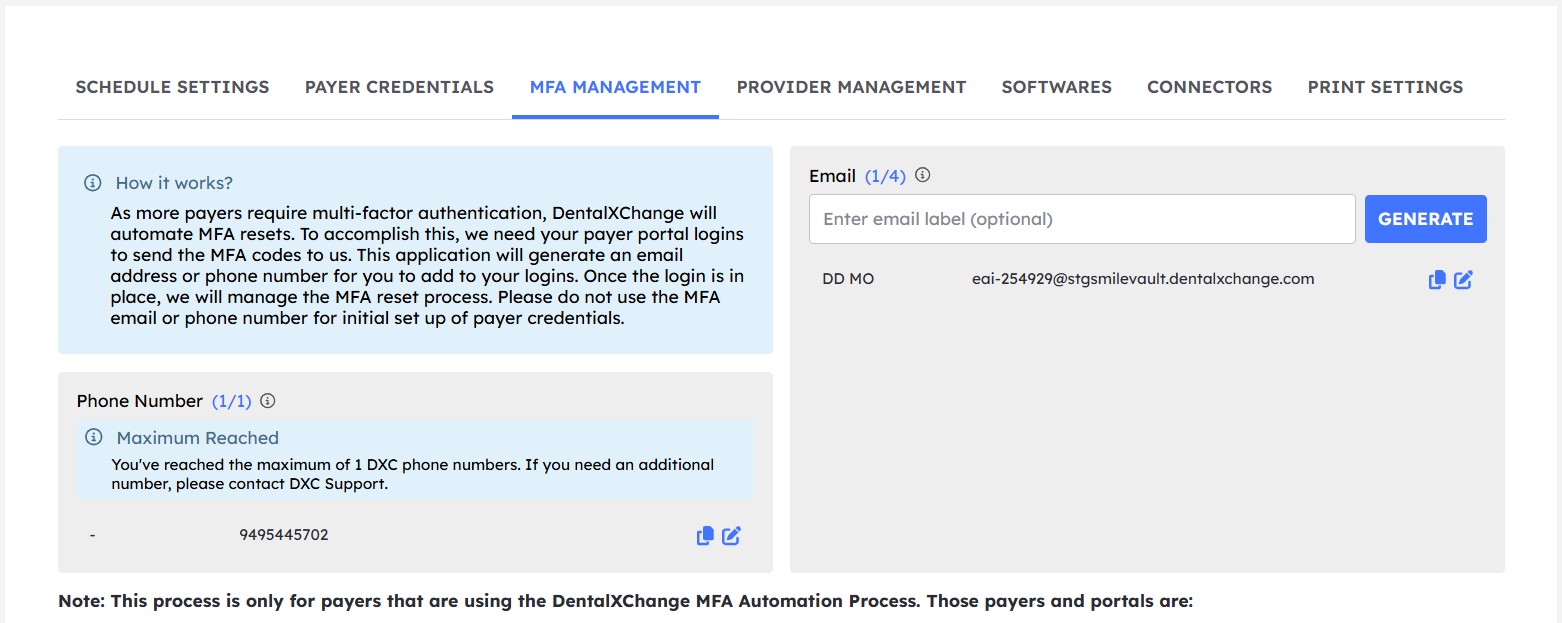
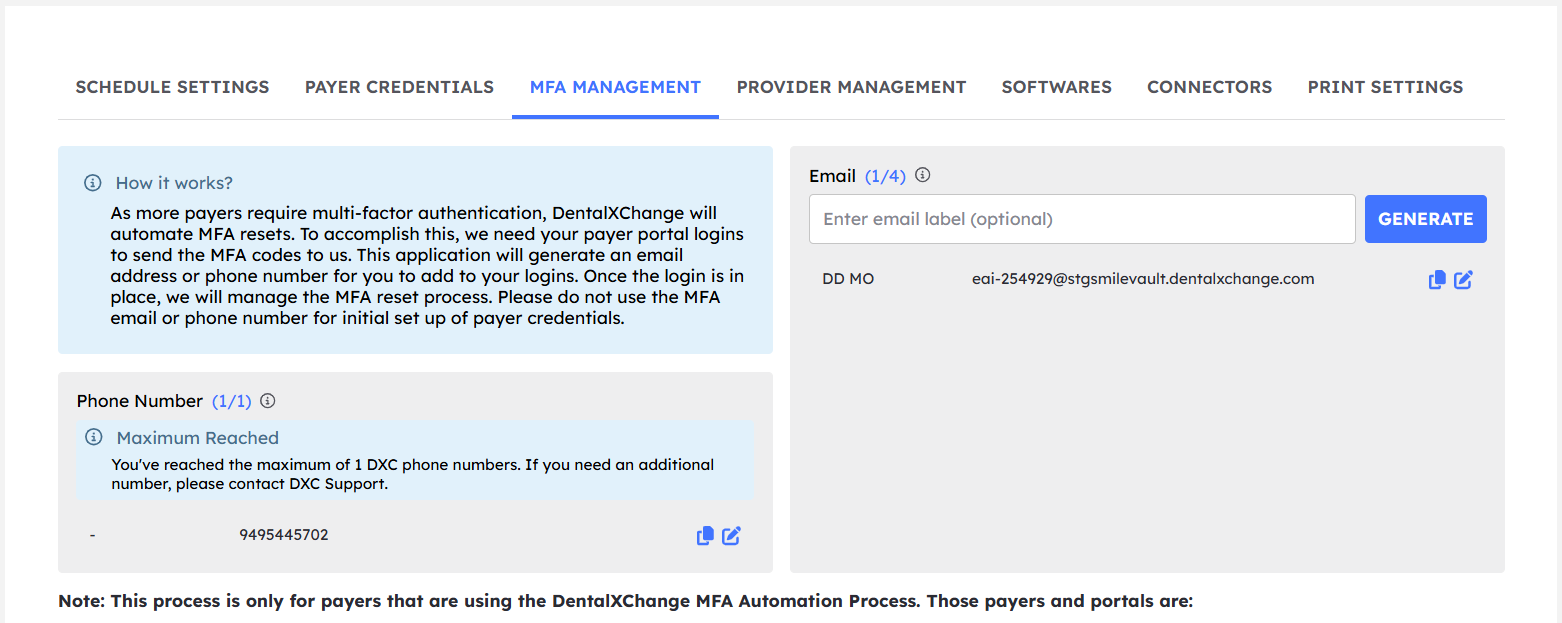
- When entering your email, please use a DXC generated email from Eligibility AI, which can be found in Administration > MFA Management and generate a DXC associated email for that state portal.
- You will be able to label the email as well- please label it as the specific Delta Dental state so it’s clear which portal it will be used for. This can be done by clicking the pencil icon next to the email address.
- Use the state specific email address when adding the new credential for that state portal under Payer Credentials. This will be the email address that will need to be assigned as the MFA option in the payer portal account.
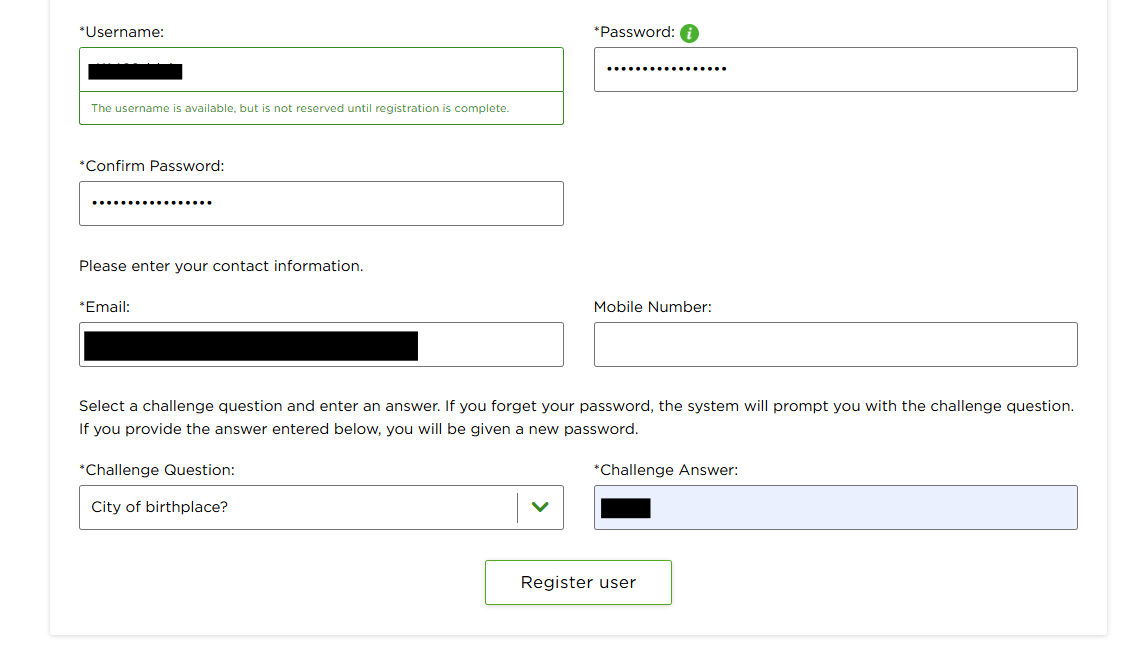
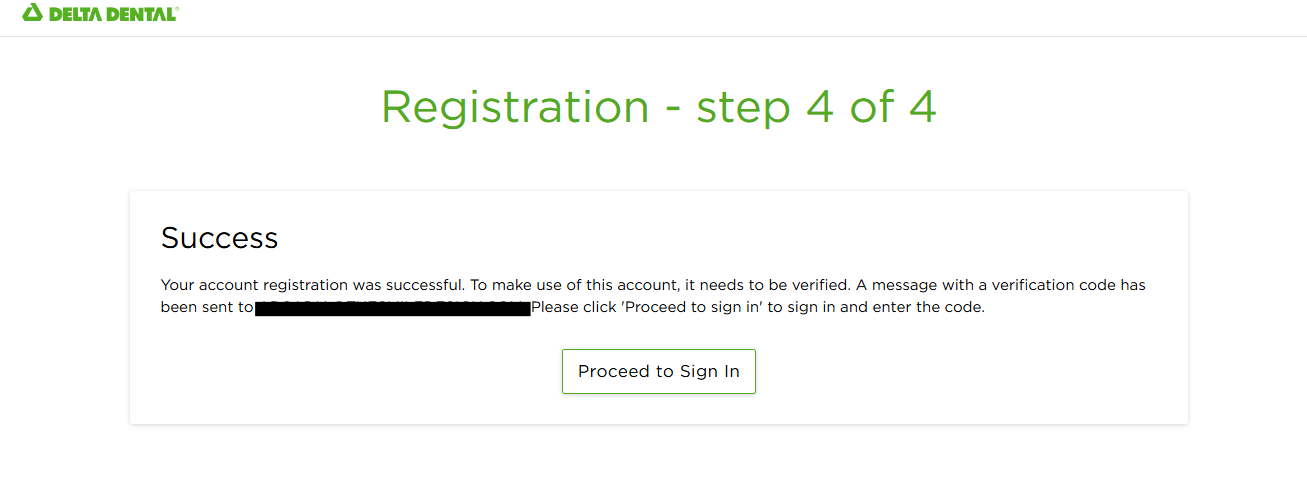
- A code will now be sent to the email on file with Delta Dental at the time of initial credentialing. Please locate this code and then click Proceed to Sign in
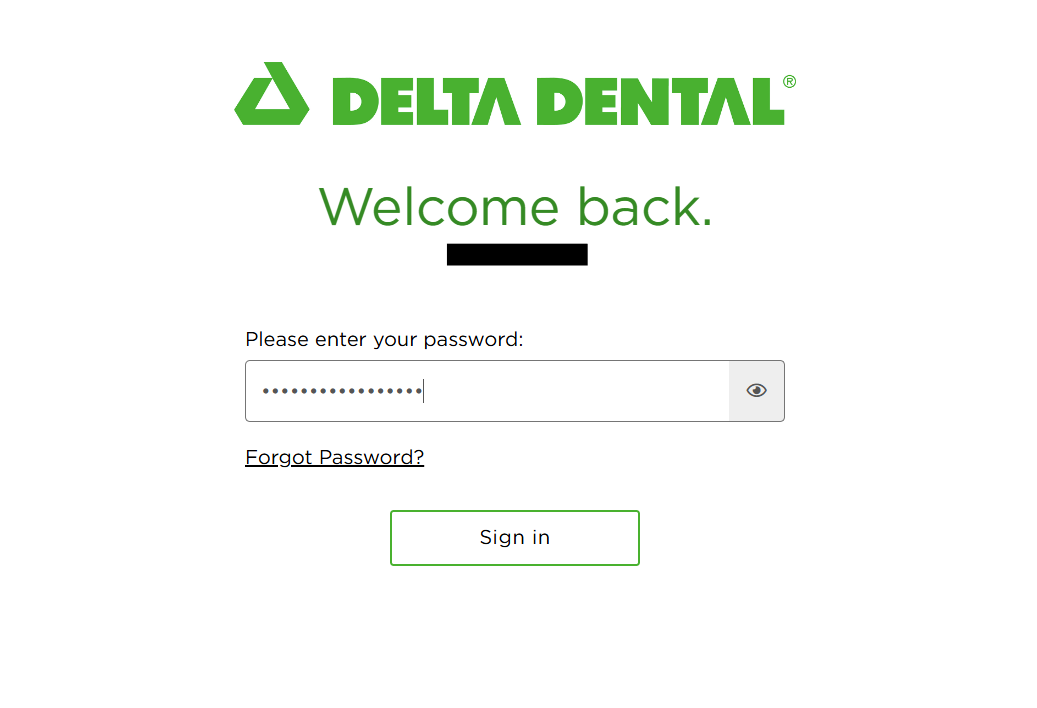
- Enter in your username and password, then click Sign in
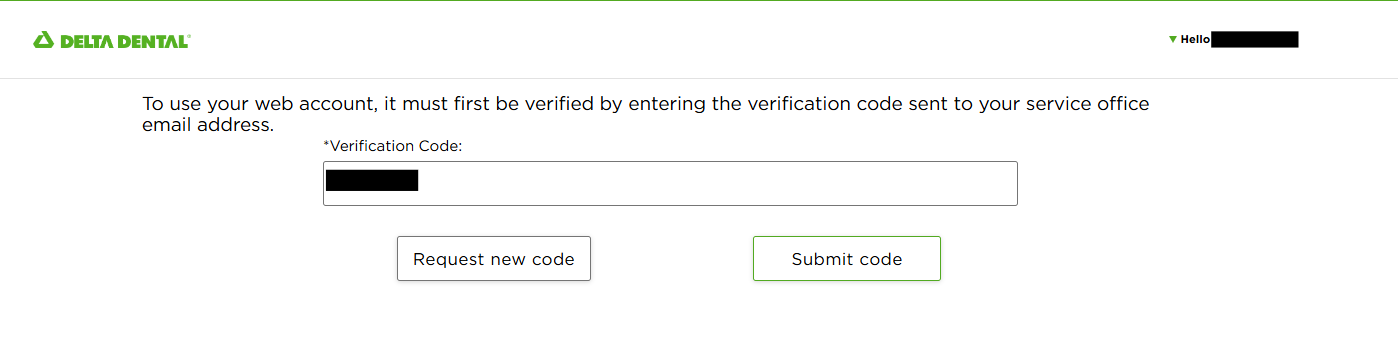
- Enter the code received from the email and click Submit code
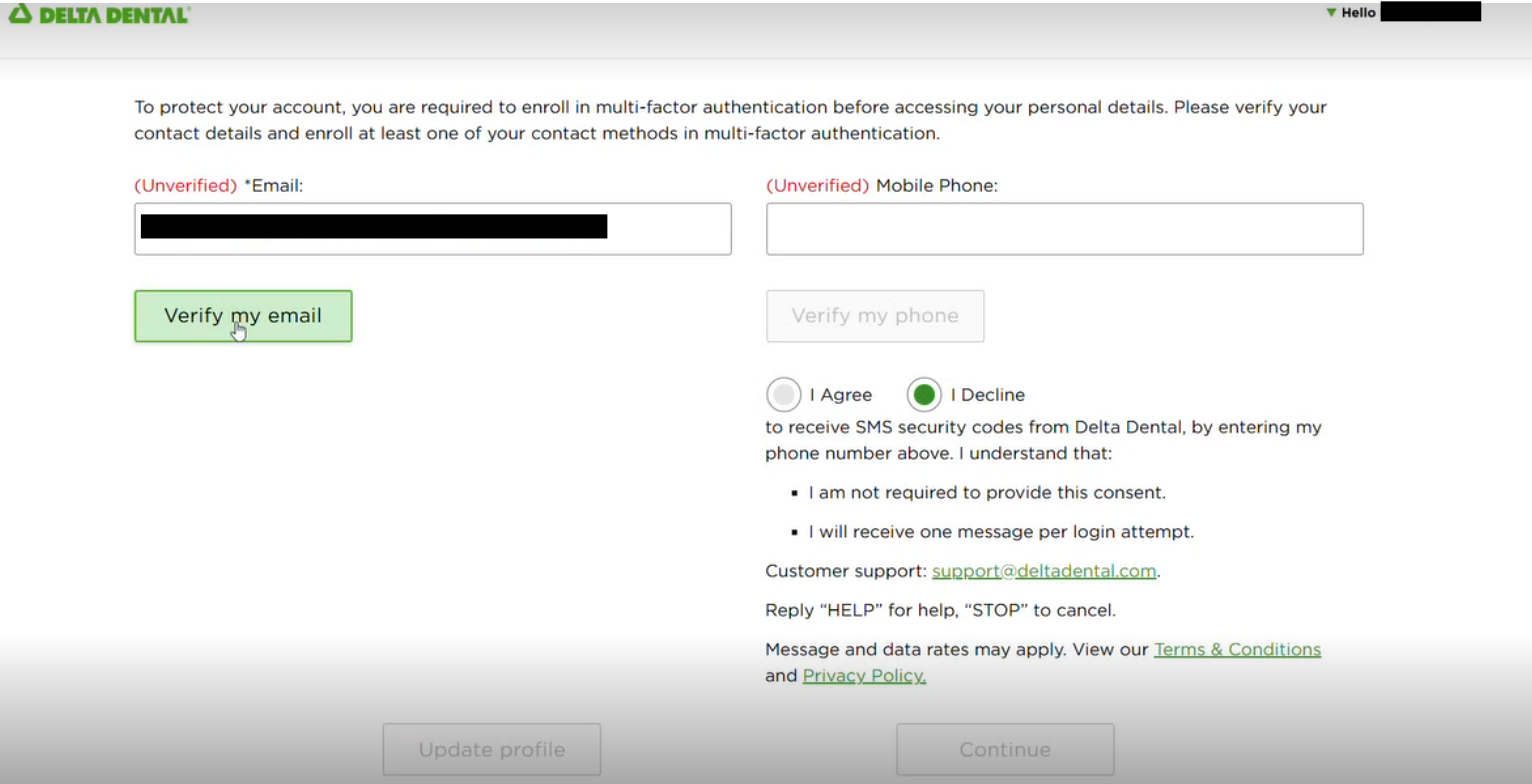
- Now you will need to verify your MFA email. Paste in the same email you used for registration (DXC generated email) and click Veirfy my email
- Enter in the verification code and click Submit code
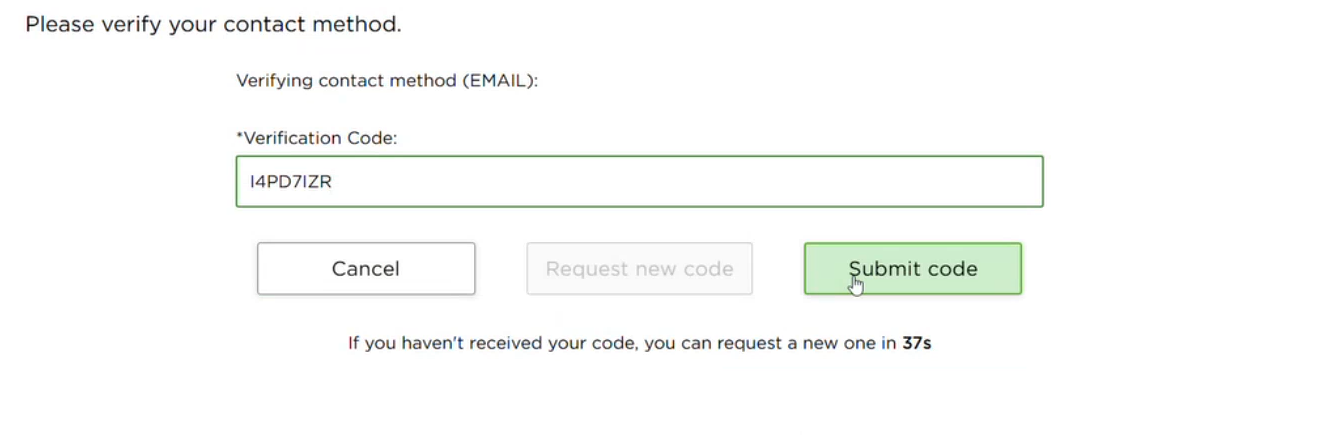
- This code can be found in your Eligibility AI account under Administration > MFA Management. Click the copy button next to code and paste it into the Delta website

- This code can be found in your Eligibility AI account under Administration > MFA Management. Click the copy button next to code and paste it into the Delta website
- Once the code has been verified, click Enroll in MFA
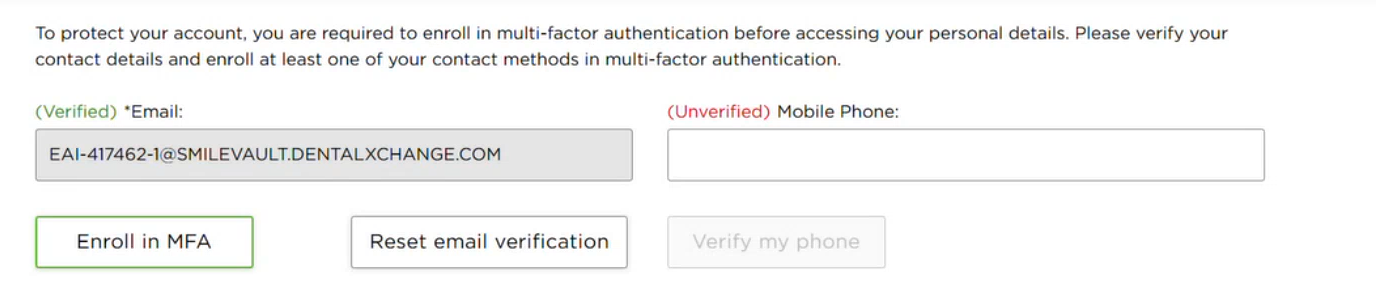
- Enter in the DXC generated phone number. This can also be located in Eligibility AI under Administration > MFA Management. Select I Agree and click Update profile in the Delta portal.
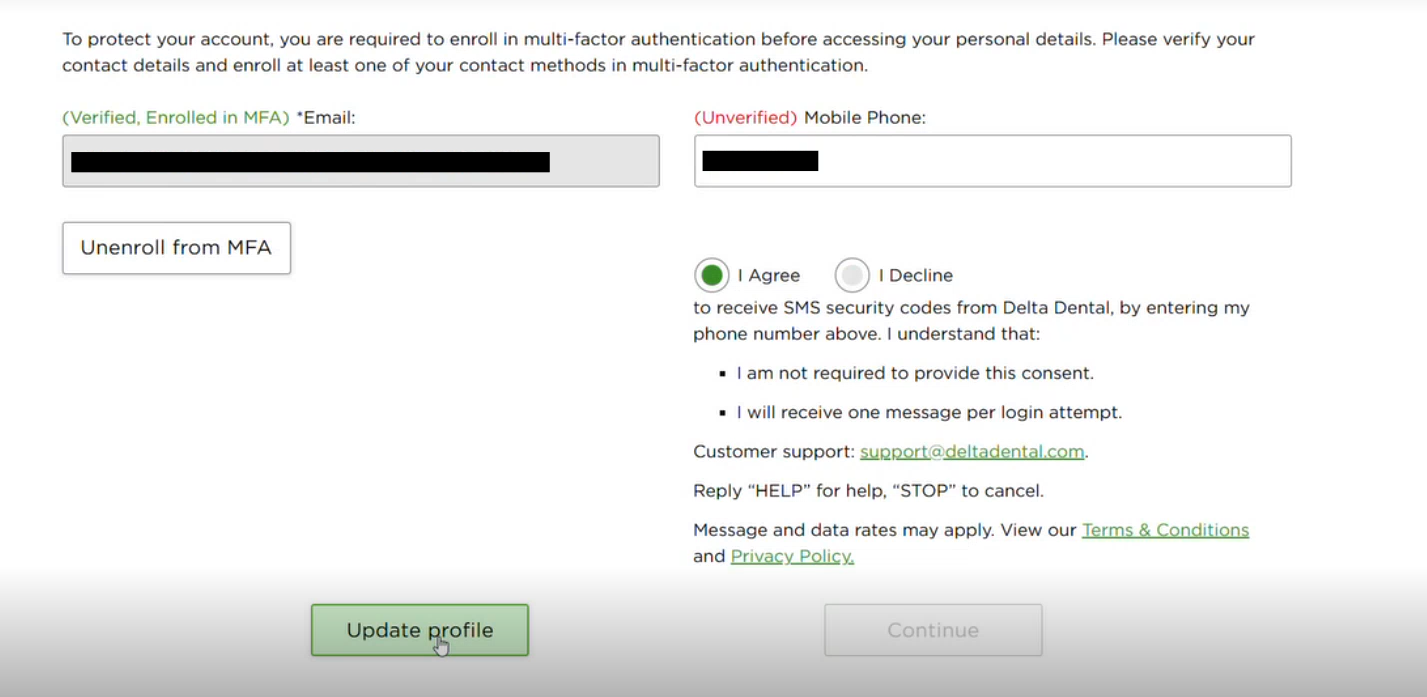
- Enter in the verification code and click Submit code
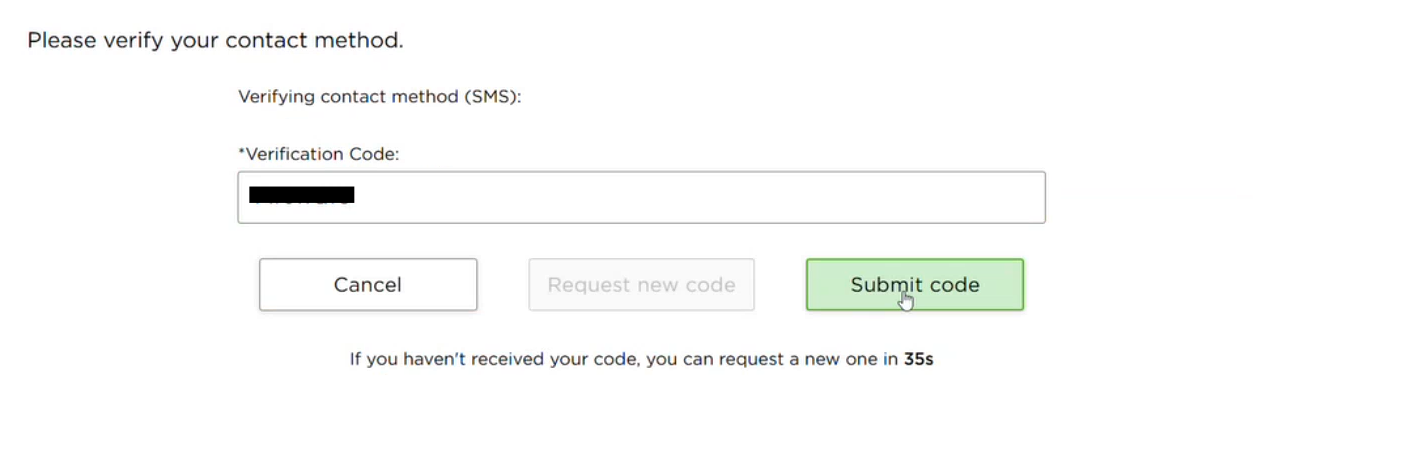
- This code can be found in your Eligibility AI account under Administration > MFA Management. Click the copy button next to code and paste it into the Delta website

- This code can be found in your Eligibility AI account under Administration > MFA Management. Click the copy button next to code and paste it into the Delta website
- Click Continue
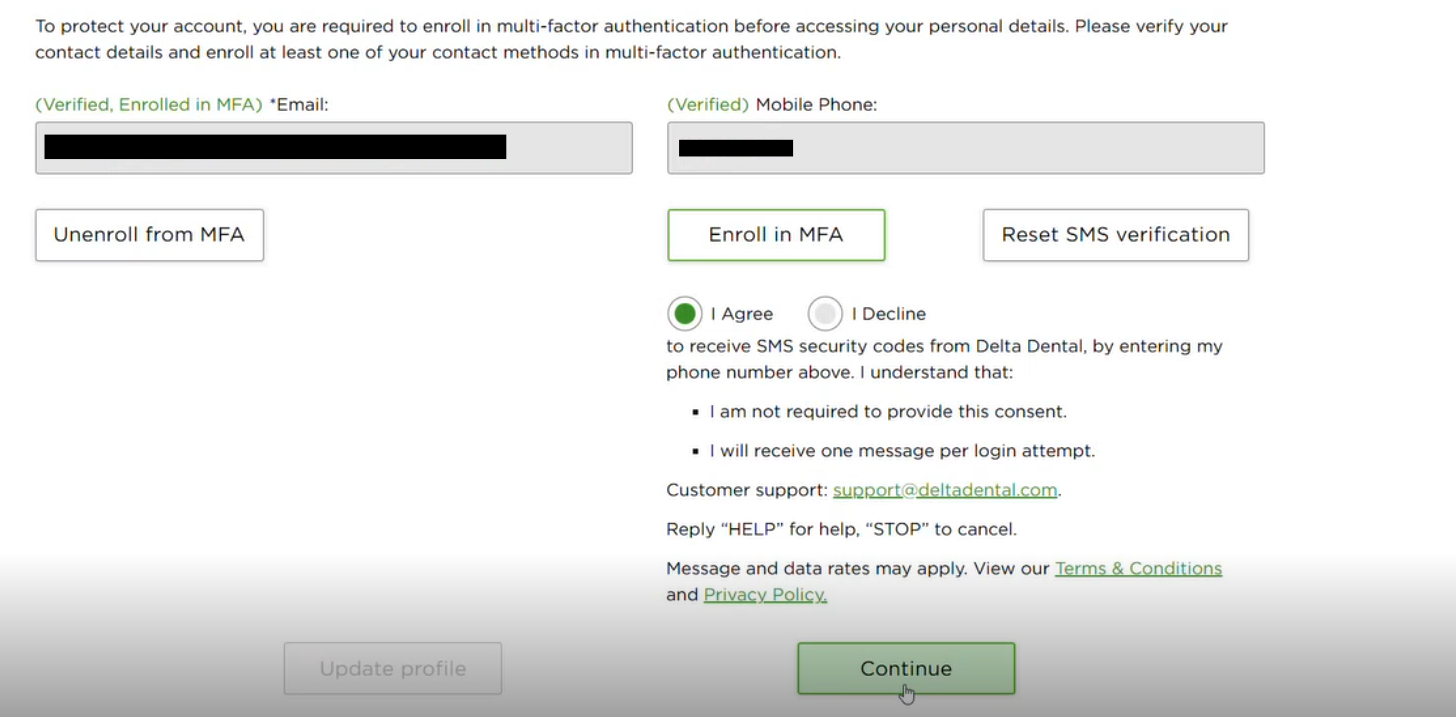
- Since we have the email enrolled in MFA, you will now need to select that to receive a code
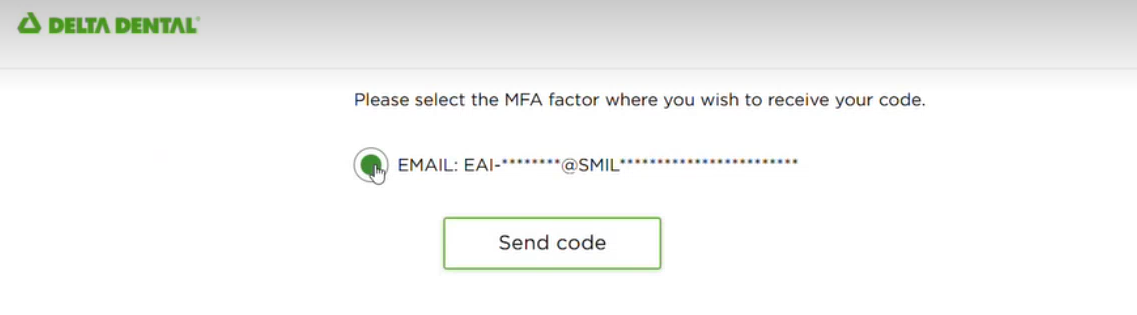
- Enter in the verification code and click Submit code
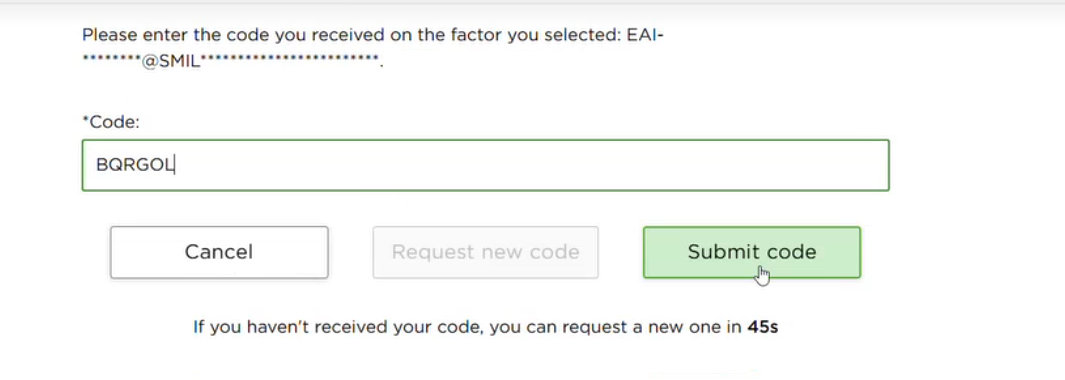
- This code can be found in your Eligibility AI account under Administration > MFA Management. Click the copy button next to code and paste it into the Delta website

- This code can be found in your Eligibility AI account under Administration > MFA Management. Click the copy button next to code and paste it into the Delta website
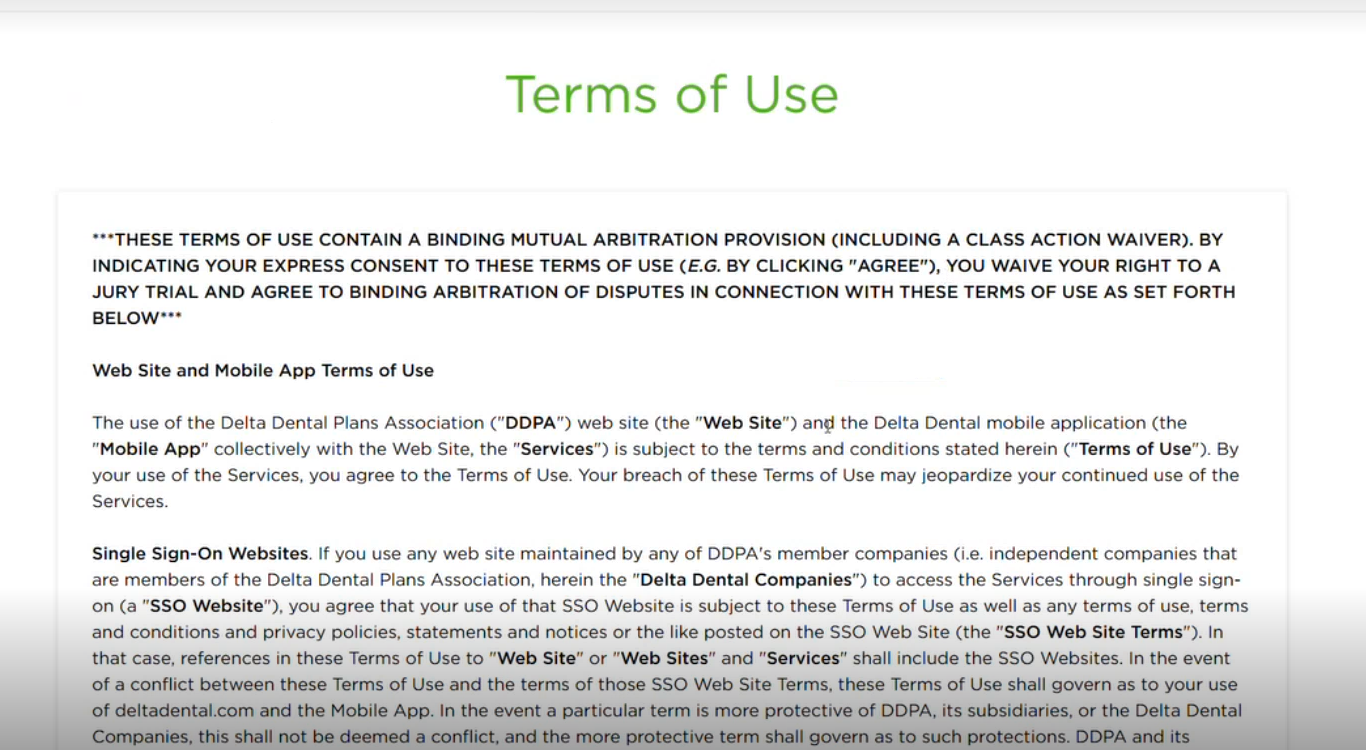
- Scroll to the bottom of the Terms of Use and click Agree
- You should now have full access to your newly created Delta state credential. Please enter this into Eligibility AI under Administration > Payer Credentials to start receiving more accurate eligibility data from that state portal
- Click New Payer Credential
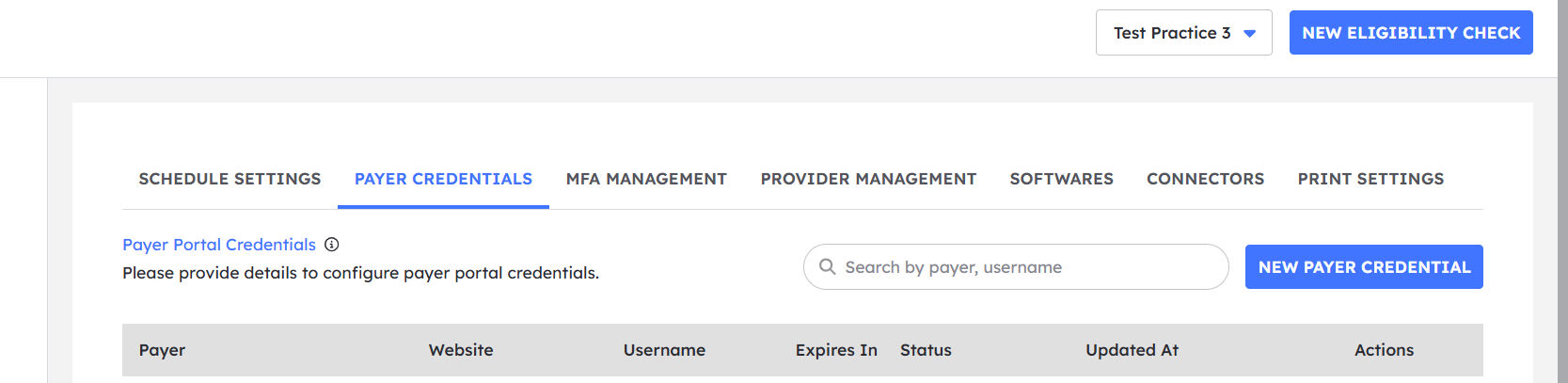
- Select the state portal you want to add, then enter in the username and password. Select your state labeled email for the MFA option
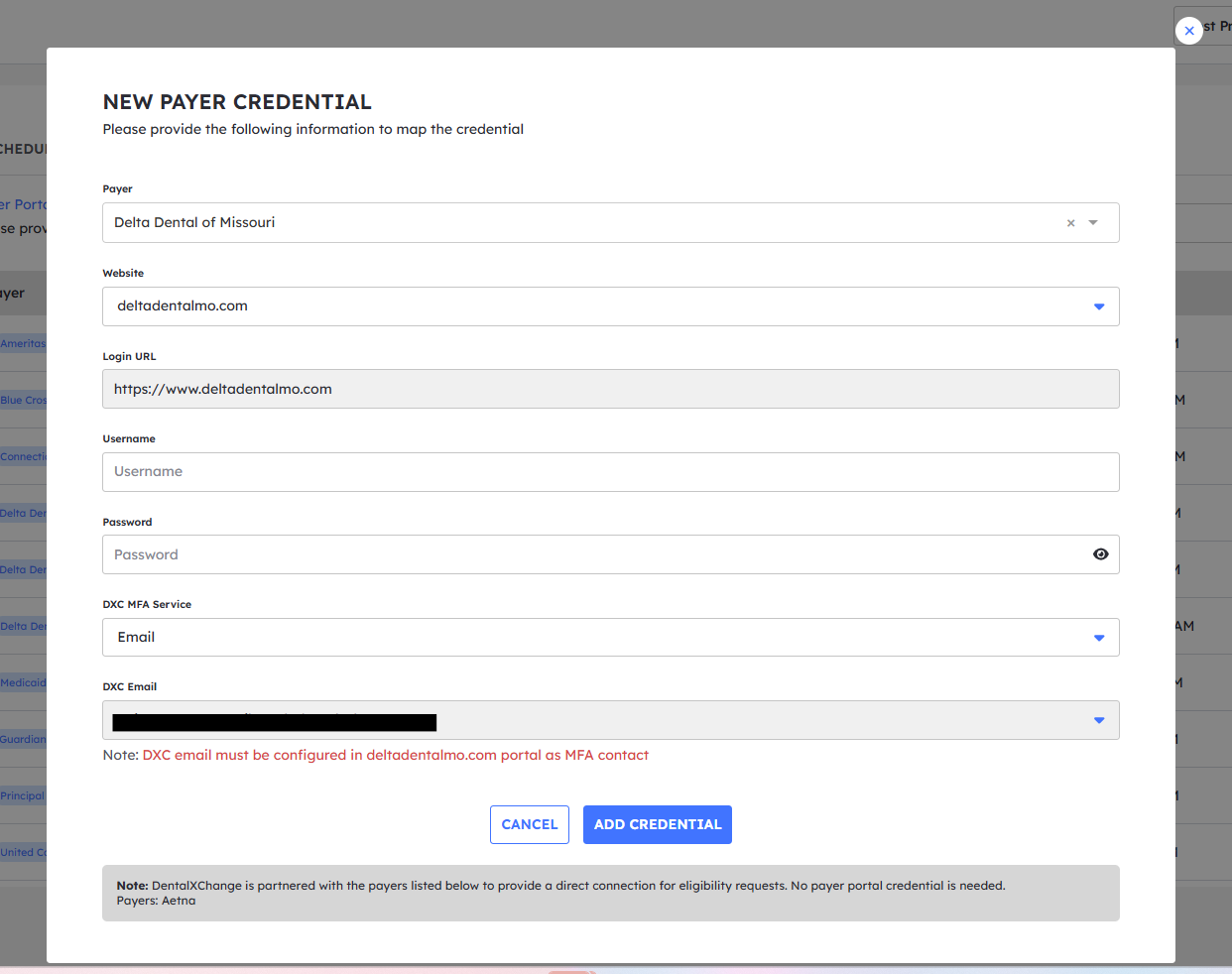
- Click New Payer Credential