Product Support
PortalPass
Attachments
Adding an Attachment to a Claim
Completing a Payer Request for Additional Details
Creating a Custom Attachment Rule
Creating a Stand Alone Attachment
Download the Attachment Tool
FAQs for AttachmentConnect
Locating the Attachment Payer List
Searching for a Claim with Attachments
Using Capture All Attachments
Statements
Claims
Add or Change Billing Information
Adding Users to DentalXChange
Change Practice Management System
Correcting a Validation Error
Download the Batch Upload Tool
FAQs for ClaimConnect
Frequestly Asked Questions for the DentalXChange Management Desktop
Medi-Cal Dental: Add Payer Claim ID from NOAs to Claims on Submission
Registering for DentalXChange
Resetting DentalXChange Password
Submitting a Claim Directly on DentalXChange
Uploading a Batch Claim File
Credentialing
Credentialing For Providers
Creating an Application
FAQ's for Providers using CredentialConnect
Adding Approvals From Payers
Creating a New Account with CredentialConnect
How to Edit Locked Application Fields
How to Update Expiring Supporting Documents
Introduction to CredentialConnect for Providers
Password Recovery
Payer Messages
Submitting an Application Via Email
Understanding the Homepage
Username Recovery
System Requirements for CredentialConnect
Uploading Files to CredentialConnect
Eligibility AI
Payer Portals- Credential Creation
Ameritas
Carefirst
Cigna
DNoA
Delta Dental State Portals- AK, AR, CO, CT, IL, KS, MA, NJ, OK, OR, RI, SD, VA, WA, Northeast, Delta Covers Me
Delta Dental State Portals- IA, ID, MO, SC, WI, WY
DentalHub- Adding a New Team Member
Geha
Guardian
MetLife- Updating MFA Email
Metlife
Principal
United Concordia
FAQ's for Eligibility AI
Introduction to Eligibility AI
Reviewing Eligibility & Benefit Details
Add Payer Credential with Multi-Factor Authentication
Common Reasons for Failed Benefit Checks
Managing Payer Credentials
Manually Running an Eligibility Check
Notes and Benefit Customization
Merchant Services
CardPointe Portal
How to setup Payment Plans
Notifications & Alerts
Reconcile Merchant Services (PayConnect) Transactions
Video: How to Process a Refund
Video: How to Process a Void
Video: How to Set Up Payment Plans
Video: How to Use Text-to-Pay
Video: How to use the Virtual Terminal
Real-Time Eligibility
Electronic Remittance Advice
Enrollment
Partner Support
- All Categories
- Product Support
- Claims
- Frequestly Asked Questions for the DentalXChange Management Desktop
Frequestly Asked Questions for the DentalXChange Management Desktop
 Updated
by Lindsey Schurman
Updated
by Lindsey Schurman
FAQ
DentalXChange Management Desktop
Find the most commonly asked questions here! If you have a question that isn't answered by our FAQ, contact DentalXChange and submit a support request.
What are the minimum system requirements to use DentalXChange Management Desktop (DMD)?
Hardware Requirements |
|
Software Requirements | Operating System:
Other Software:
|
Why do I only see some of my submissions?
The DentalXChange Management Desktop lives on your local machine. This means it has access only to information related to claims submitted through the DMD application on your computer. All claim submissions can be reviewed on ClaimConnect.
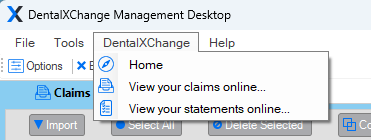
To reach ClaimConnect from the DMD, find DentalXChange in the Top Navigation Bar and select 'View your claims online'.
I accidentally printed a customer's receipt to the DentalXChange Management Desktop, and now it says I have claims to import.
To clear the Claims or Statement Printer, the documents printed to the DMD will need to be removed. Go to Help > About> Data > Claim to view the printed documents. Select the image files to view what is currently in the Import section and delete the bad file(s). You can also contact DentalXChange for easy removal.
When I submit a large claim, it gets divided into two claims. How do I correct this?
The DMD uses the ADA forms to collect your claims. When a claim has more than 10 procedure lines, it will automatically be divided into multiple claims. You can combine two claims for a patient into one by selecting the two claims you want to pair and then clicking 'Combine' to create one larger claim.
I see my primary insurance on my secondary claim, but how can I enter the primary payment information?
Because the DMD uses the ADA form to collect your claims, some Primary paid data cannot be provided on the form. This can be resolved in two ways:
- Select the claim, then select the 'Additional Subscriber' field to enter prior payment information.
- Submit the claim to ClaimConnect and allow the DentalXChange validations to show you what the payer needs.
How do I install the program on a new computer?
DentalXChange can help with that! Contact DentalXChange to schedule additional installations.