Product Support
Attachments
Adding an Attachment to a Claim
Completing a Payer Request for Additional Details
Creating a Custom Attachment Rule
Creating a Stand Alone Attachment
Download the Attachment Tool
FAQs for AttachmentConnect
Locating the Attachment Payer List
Searching for a Claim with Attachments
Using Capture All Attachments
Statements
Claims
Add or Change Billing Information
Adding Users to DentalXChange
Change Practice Management System
Correcting a Validation Error
Download the Batch Upload Tool
FAQs for ClaimConnect
Frequestly Asked Questions for the DentalXChange Management Desktop
Medi-Cal Dental: Add Payer Claim ID from NOAs to Claims on Submission
Registering for DentalXChange
Resetting DentalXChange Password
Submitting a Claim Directly on DentalXChange
Uploading a Batch Claim File
Credentialing
Credentialing For Providers
Creating an Application
FAQ's for Providers using CredentialConnect
Adding Approvals From Payers
Creating a New Account with CredentialConnect
How to Edit Locked Application Fields
How to Update Expiring Supporting Documents
Introduction to CredentialConnect for Providers
Password Recovery
Payer Messages
Submitting an Application Via Email
Understanding the Homepage
Username Recovery
System Requirements for CredentialConnect
Uploading Files to CredentialConnect
Eligibility AI
Payer Portals- Credential Creation
Ameritas
Carefirst
Cigna
DNoA
Delta Dental State Portals- AK, AR, CO, CT, IL, KS, MA, NJ, OK, OR, RI, SD, VA, WA, Northeast, Delta Covers Me
Delta Dental State Portals- IA, ID, MO, SC, WI, WY
DentalHub- Adding a New Team Member
Geha
Guardian
MetLife- Updating MFA Email
Metlife
Principal
United Concordia
FAQ's for Eligibility AI
Introduction to Eligibility AI
Reviewing Eligibility & Benefit Details
Add Payer Credential with Multi-Factor Authentication
Common Reasons for Failed Benefit Checks
Managing Payer Credentials
Manually Running an Eligibility Check
Notes and Benefit Customization
Merchant Services
CardPointe Portal
How to setup Payment Plans
Notifications & Alerts
Reconcile Merchant Services (PayConnect) Transactions
Video: How to Process a Refund
Video: How to Process a Void
Video: How to Set Up Payment Plans
Video: How to Use Text-to-Pay
Video: How to use the Virtual Terminal
Real-Time Eligibility
Electronic Remittance Advice
Enrollment
Partner Support
- All Categories
- Product Support
- Merchant Services
- Notifications & Alerts
Notifications & Alerts

Notifications & Alerts
How To Set Up Notifications and Alerts in PayConnect
Overview of Notifications
This guide explains how to set up notifications and alerts in PayConnect so you are automatically informed when specific actions occur in your office. Notifications help ensure transparency, accountability, and awareness- especially for refunds, payment activity, and patient communications.
PayConnect allows users to receive email and/or text alerts for nearly all-important activities.
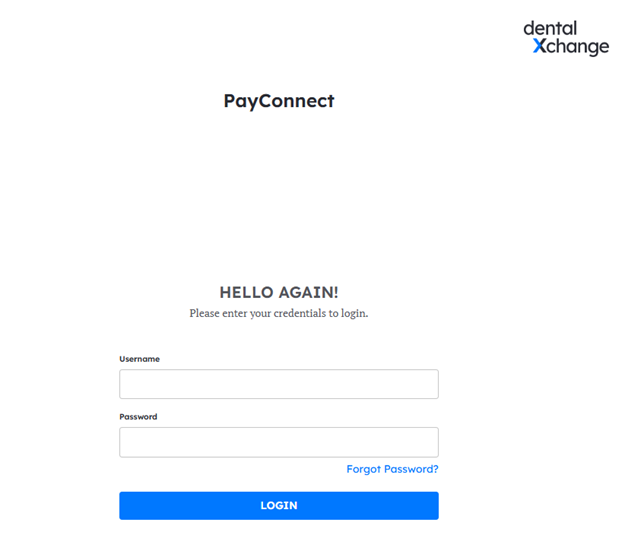
Log in to PayConnect
1. Sign in to your PayConnect account.
Navigate to Notifications Settings
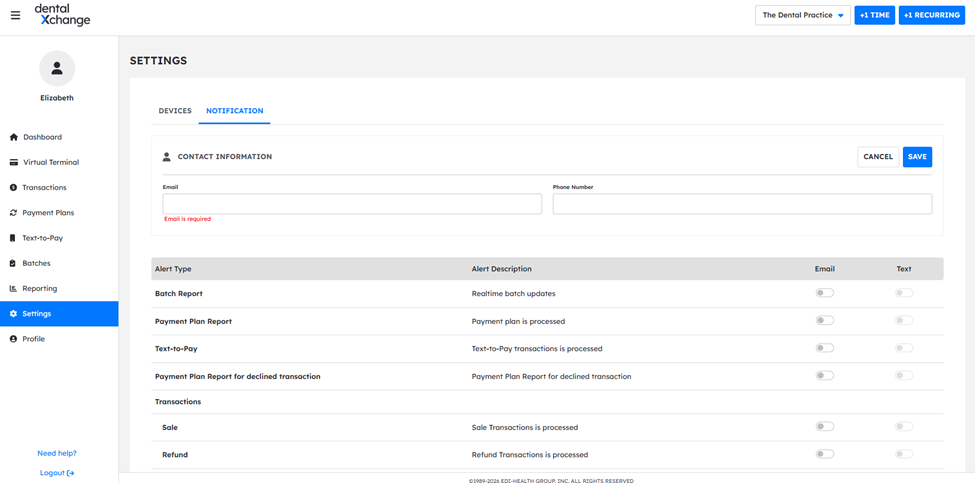
1. Go to the Notifications or Alerts section
Step 2: Enter Contact Information
- Enter the email address where you want alerts delivered.
- Enter the mobile phone number if you want to receive text (SMS) alerts.
- Confirm the information is correct before enabling alerts.
Enable Internal (Office) Alerts
Internal alerts notify staff or leadership when actions happen in the office.
- Review the list of available alert types.
- Toggle alerts ON for the events you want to monitor.
- Click Save

Enable Patient Alerts
Patient alerts notify patients, not internal staff, when certain events occur.
- Locate the Patient Alerts section.
- Enable alerts such as:
- Payment plan approved
- Payment plan declined
- Confirm the alert timing and delivery method.
- Click Save

By setting up notifications correctly, you stay informed, in control, and confident about everything happening in your office.