Product Support
PortalPass
Attachments
Adding an Attachment to a Claim
Completing a Payer Request for Additional Details
Creating a Custom Attachment Rule
Creating a Stand Alone Attachment
Download the Attachment Tool
FAQs for AttachmentConnect
Locating the Attachment Payer List
Searching for a Claim with Attachments
Using Capture All Attachments
Statements
Claims
Add or Change Billing Information
Adding Users to DentalXChange
Change Practice Management System
Correcting a Validation Error
Download the Batch Upload Tool
FAQs for ClaimConnect
Frequestly Asked Questions for the DentalXChange Management Desktop
Medi-Cal Dental: Add Payer Claim ID from NOAs to Claims on Submission
Registering for DentalXChange
Resetting DentalXChange Password
Submitting a Claim Directly on DentalXChange
Uploading a Batch Claim File
Credentialing
Credentialing For Providers
Creating an Application
FAQ's for Providers using CredentialConnect
Adding Approvals From Payers
Creating a New Account with CredentialConnect
How to Edit Locked Application Fields
How to Update Expiring Supporting Documents
Introduction to CredentialConnect for Providers
Password Recovery
Payer Messages
Submitting an Application Via Email
Understanding the Homepage
Username Recovery
System Requirements for CredentialConnect
Uploading Files to CredentialConnect
Eligibility AI
Payer Portals- Credential Creation
Ameritas
Carefirst
Cigna
DNoA
Delta Dental State Portals- AK, AR, CO, CT, IL, KS, MA, NJ, OK, OR, RI, SD, VA, WA, Northeast, Delta Covers Me
Delta Dental State Portals- IA, ID, MO, SC, WI, WY
DentalHub- Adding a New Team Member
Geha
Guardian
MetLife- Updating MFA Email
Metlife
Principal
United Concordia
FAQ's for Eligibility AI
Introduction to Eligibility AI
Reviewing Eligibility & Benefit Details
Add Payer Credential with Multi-Factor Authentication
Common Reasons for Failed Benefit Checks
Managing Payer Credentials
Manually Running an Eligibility Check
Notes and Benefit Customization
Merchant Services
CardPointe Portal
How to setup Payment Plans
Notifications & Alerts
Reconcile Merchant Services (PayConnect) Transactions
Video: How to Process a Refund
Video: How to Process a Void
Video: How to Set Up Payment Plans
Video: How to Use Text-to-Pay
Video: How to use the Virtual Terminal
Real-Time Eligibility
Electronic Remittance Advice
Enrollment
Partner Support
- All Categories
- Product Support
- Eligibility AI
- Payer Portals- Credential Creation
- MetLife- Updating MFA Email
MetLife- Updating MFA Email

This article will walk you through how to update your MetLife MFA email since we have switched MetLife over to DXC MFA only. Please note that once you make this change, you will need to log in to Eligibility AI to retrieve your One Time Passwords (OTPs) for verification
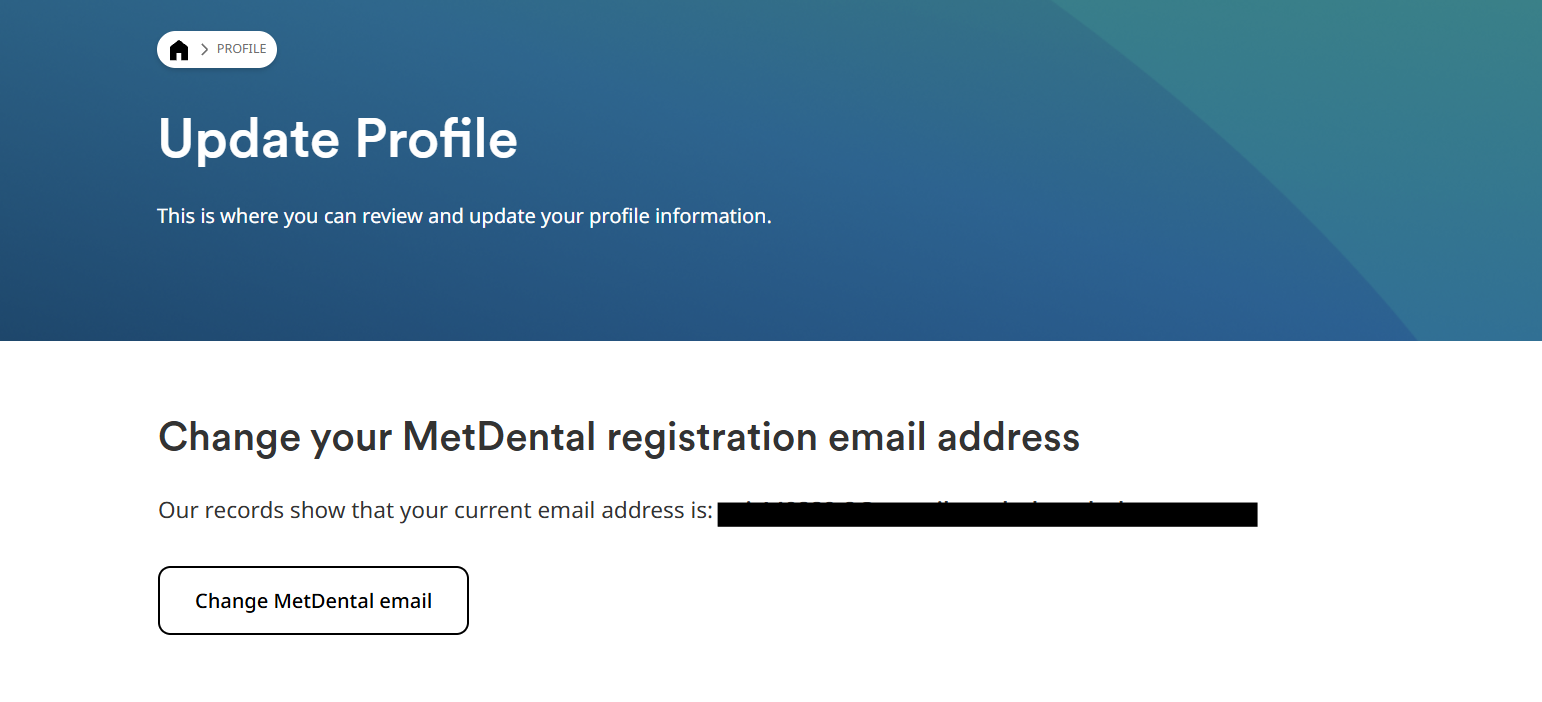
- Login to your MetLife account and click Profile.

- Click Change MetDental Email.
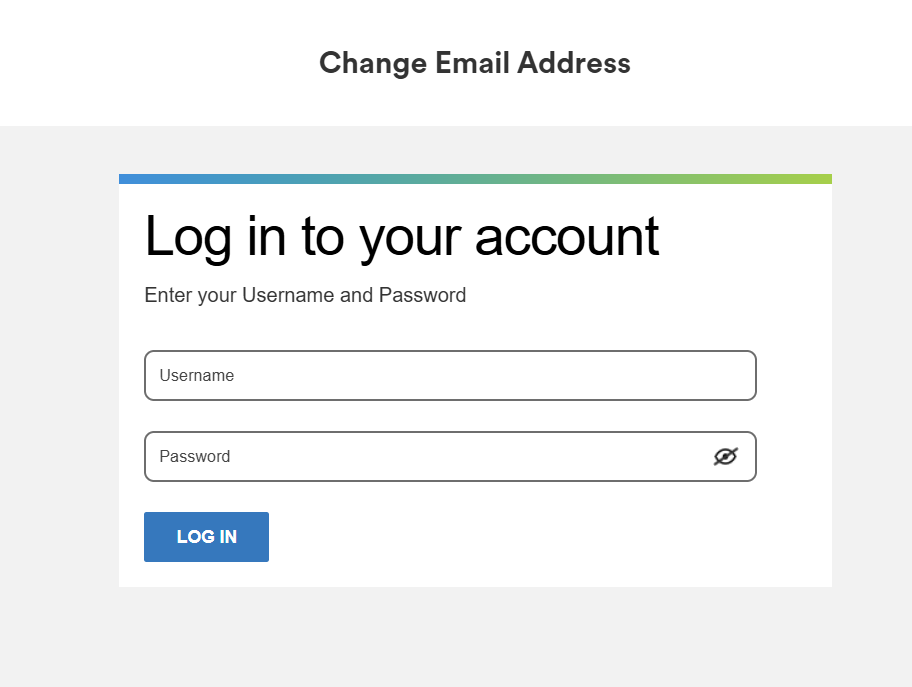
- Validate your account by logging in- enter your username & password then click Log In.
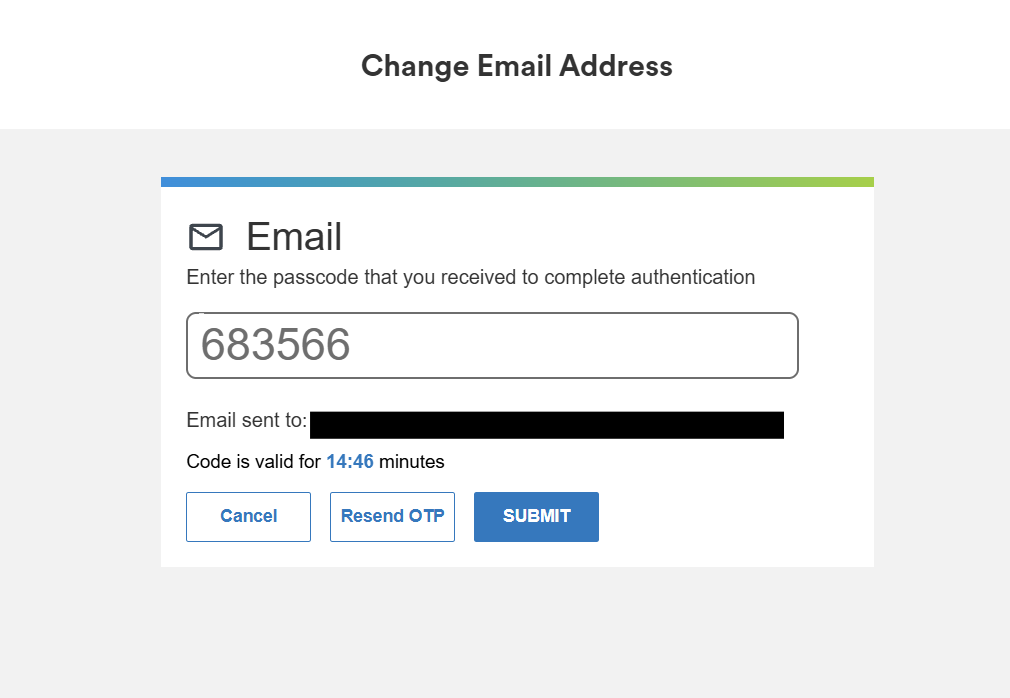
- Enter in the OTP code that was sent to the original email and click Submit.
- Enter the DXC generated email and click Update.
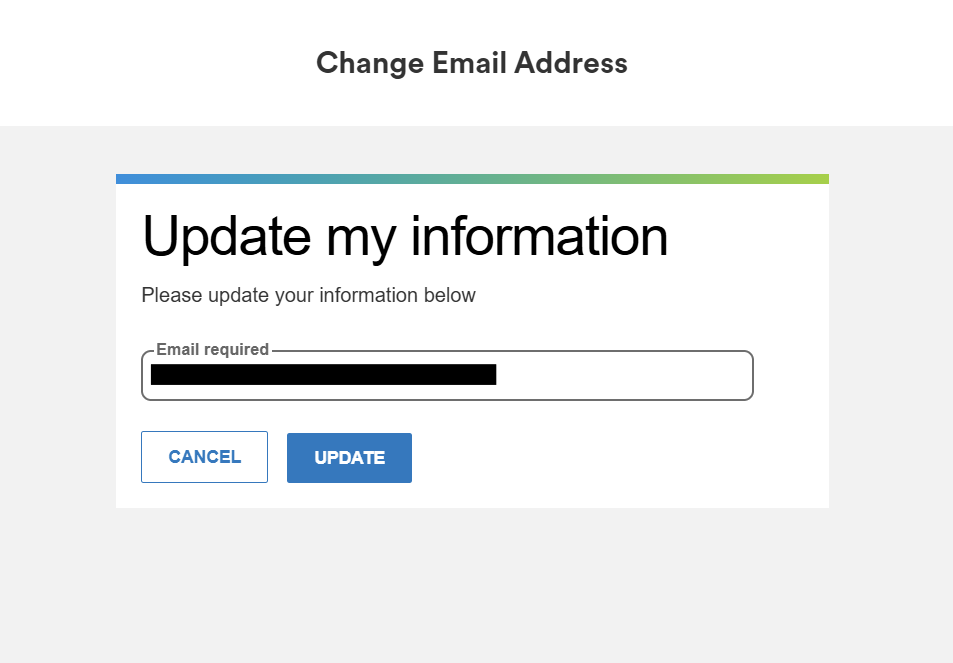
- DXC generated email(s) can be found under Administration > MFA Management. Click the copy button next to the email address and paste it into the MetLife portal. You can use a previously generated email or generate a new one.
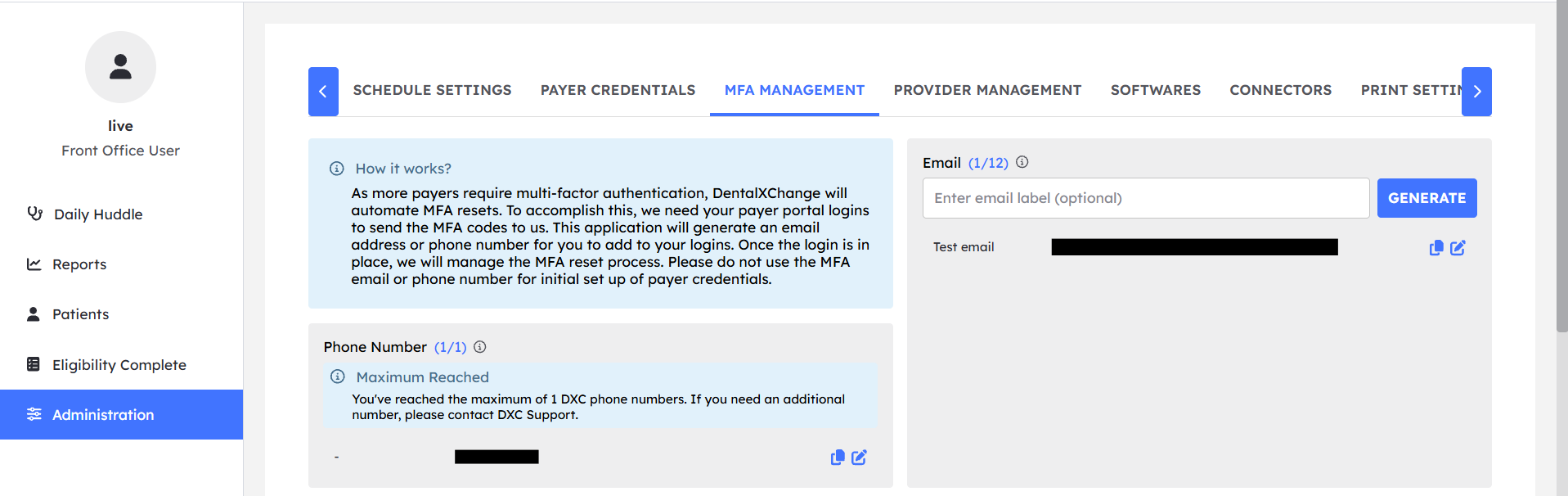
- DXC generated email(s) can be found under Administration > MFA Management. Click the copy button next to the email address and paste it into the MetLife portal. You can use a previously generated email or generate a new one.
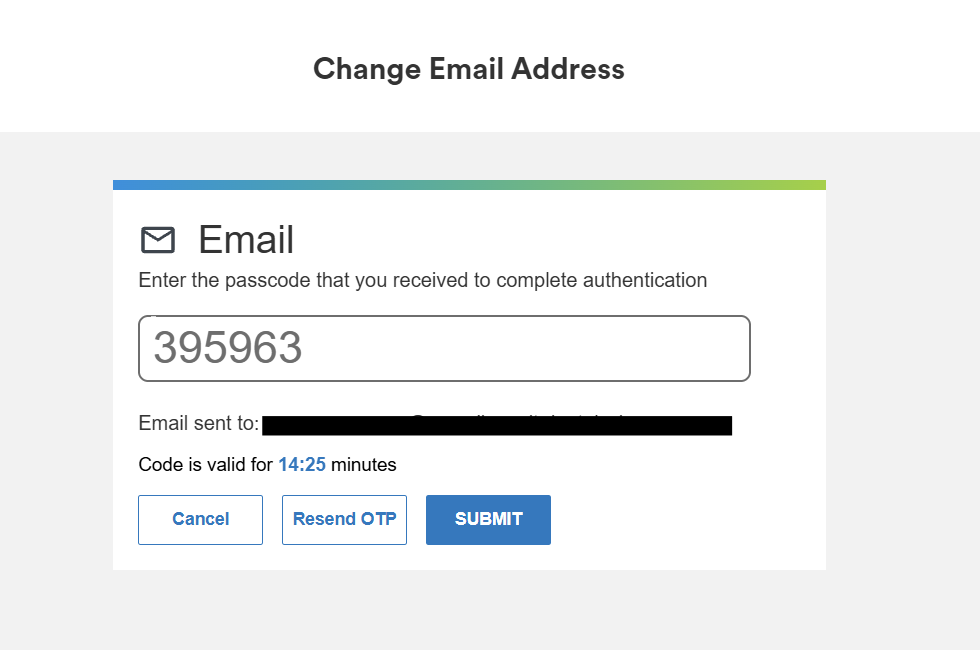
- Enter in the OTP that was sent to the DXC generated email and click Submit.
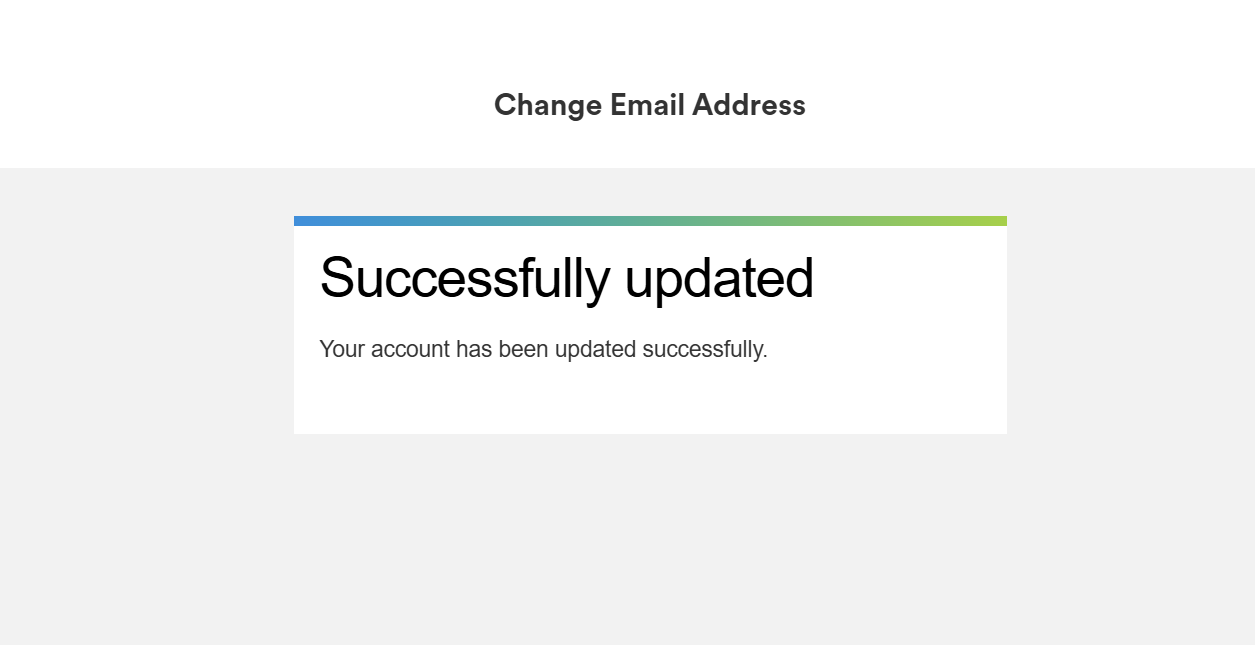
- Your MetLife email address should now be updated.
- Now in Eligibility AI, delete your existing MetLife credential and click New Payer Credential.
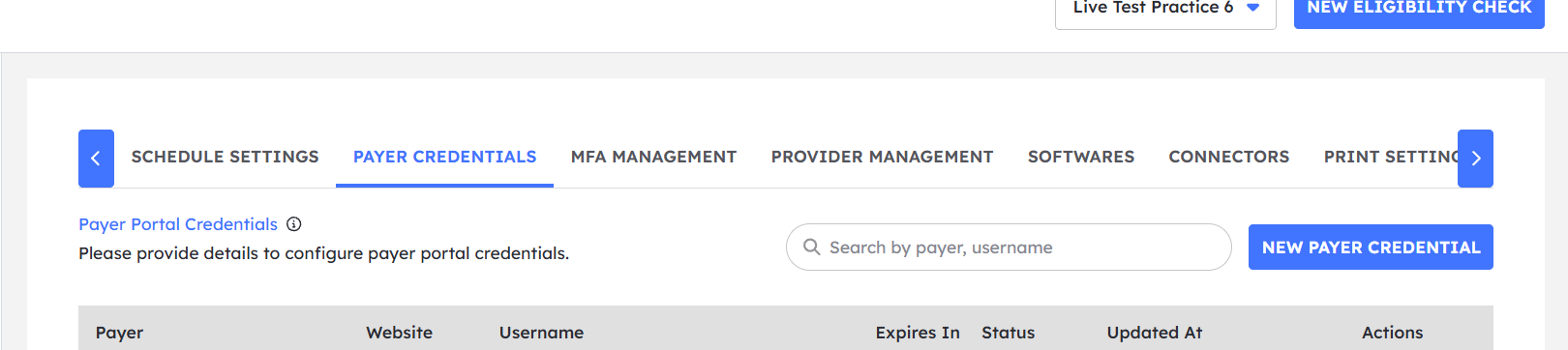
- Select MetLife for the payer, enter in the username & password, then select DXC Email for MFA. Select the email address that you have linked to your MetLife account.
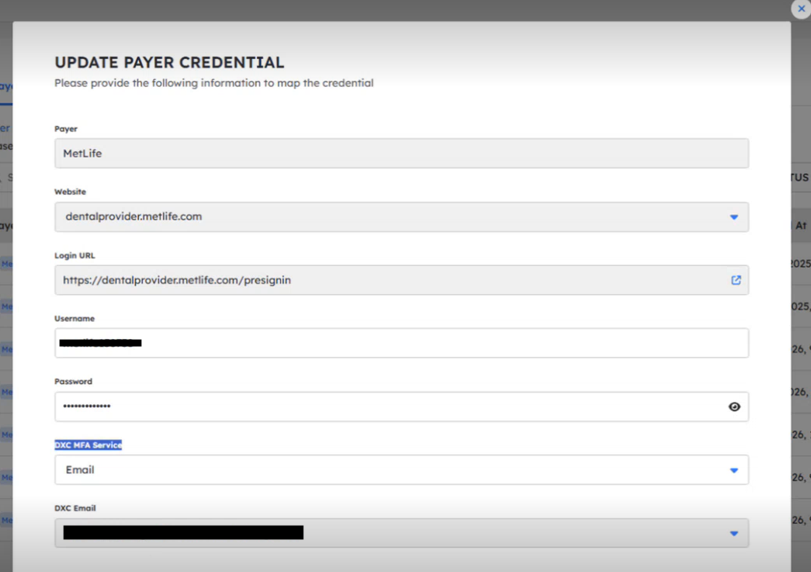
- Click Add Credential and wait for the credential to be validated. Once validated, your connection to MetLife is ready to go.